Step 1: Download QSF File
To begin, download the Qualtrics Survey File (QSF) for this experiment:
- Click on the following link: Download Template
- Save the file to your computer. Remember where you save it!
This QSF file contains the basic structure of the survey with placeholders for the AI-generated content.
Step 2: Import QSF into Qualtrics
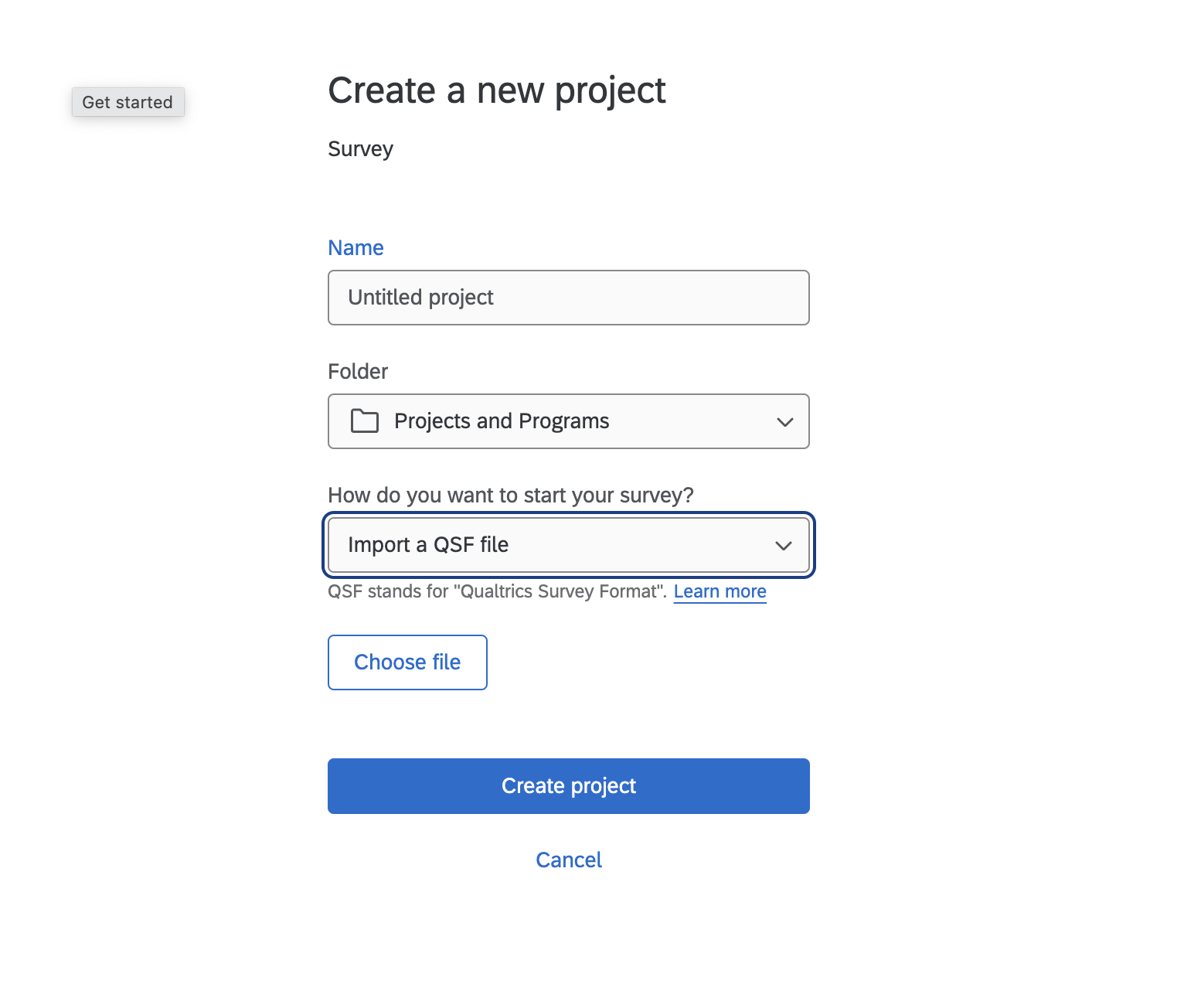
Now, let's import the QSF file into Qualtrics:
- Log in to your Qualtrics account
- Click on "Create new project"
- Select "Survey" from the options
- Click on "How Do You Want to Start a Survey?"
- Choose "Import a QSF File"
- Navigate to and select the QSF file you just downloaded
- Click "Create a Project"
Your survey template should now be loaded into Qualtrics.
Step 3: Obtain API Key
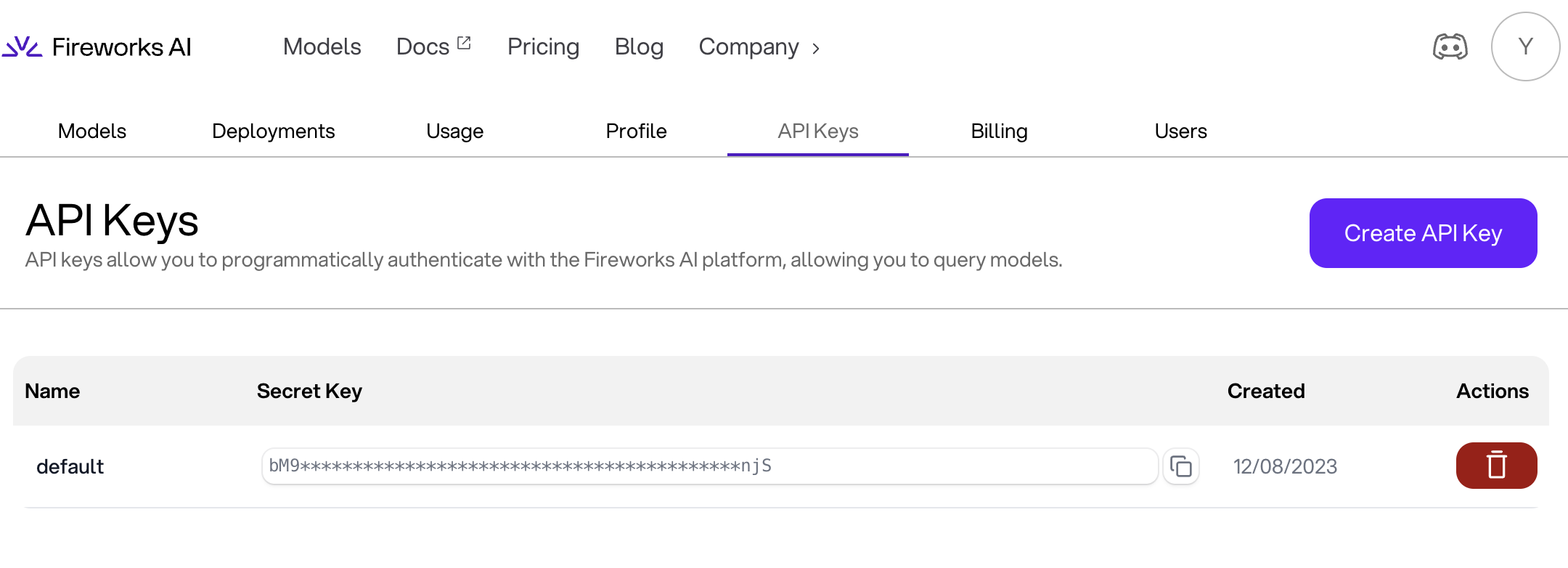
To connect with an AI service, you'll need an API key. Note: This is one of the most important steps of the tutorial. Without an API key, no content will be produced.
You have two options:
Option 1: Fireworks AI (Open Source Llama 3.1-Instruct 70B default)
- Go to Fireworks AI
- Sign up for an account if you haven't already
- Navigate to the API section
- Generate a new API key
- Copy the API key and keep it secure
Option 2: OpenAI (GPT-4o Mini)
- Go to OpenAI
- Sign up for an account if you haven't already
- Navigate to the API section
- Create a new API key
- Copy the API key and keep it secure
Step 4: Configure Settings
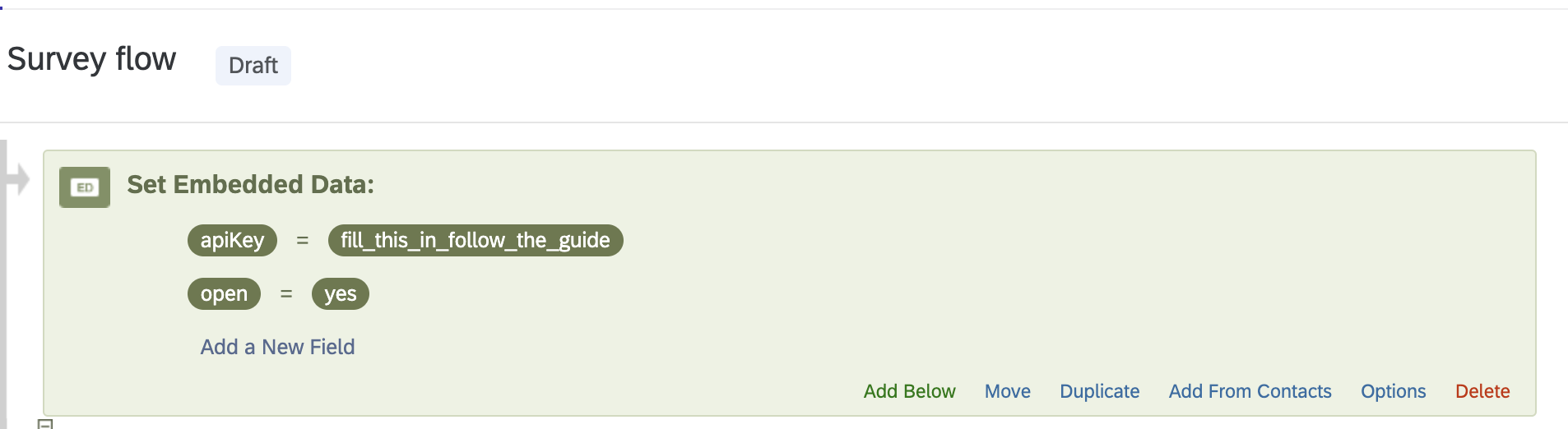
4.1 API Key Configuration
- In the Survey Flow, locate the Embedded Data Field "apiKey"
- Replace the placeholder value with your actual API key
4.2 API Selection
- In your Qualtrics survey, go to the Survey Flow.
- Find the Embedded Data Field "open"
- Set it to `no` if using OpenAI, or leave it as `yes` if using Fireworks AI (default model is Llama 3.1 70B, which is an open-source alternative to OpenAI's GPT-3.5)
Step 5: Randomization
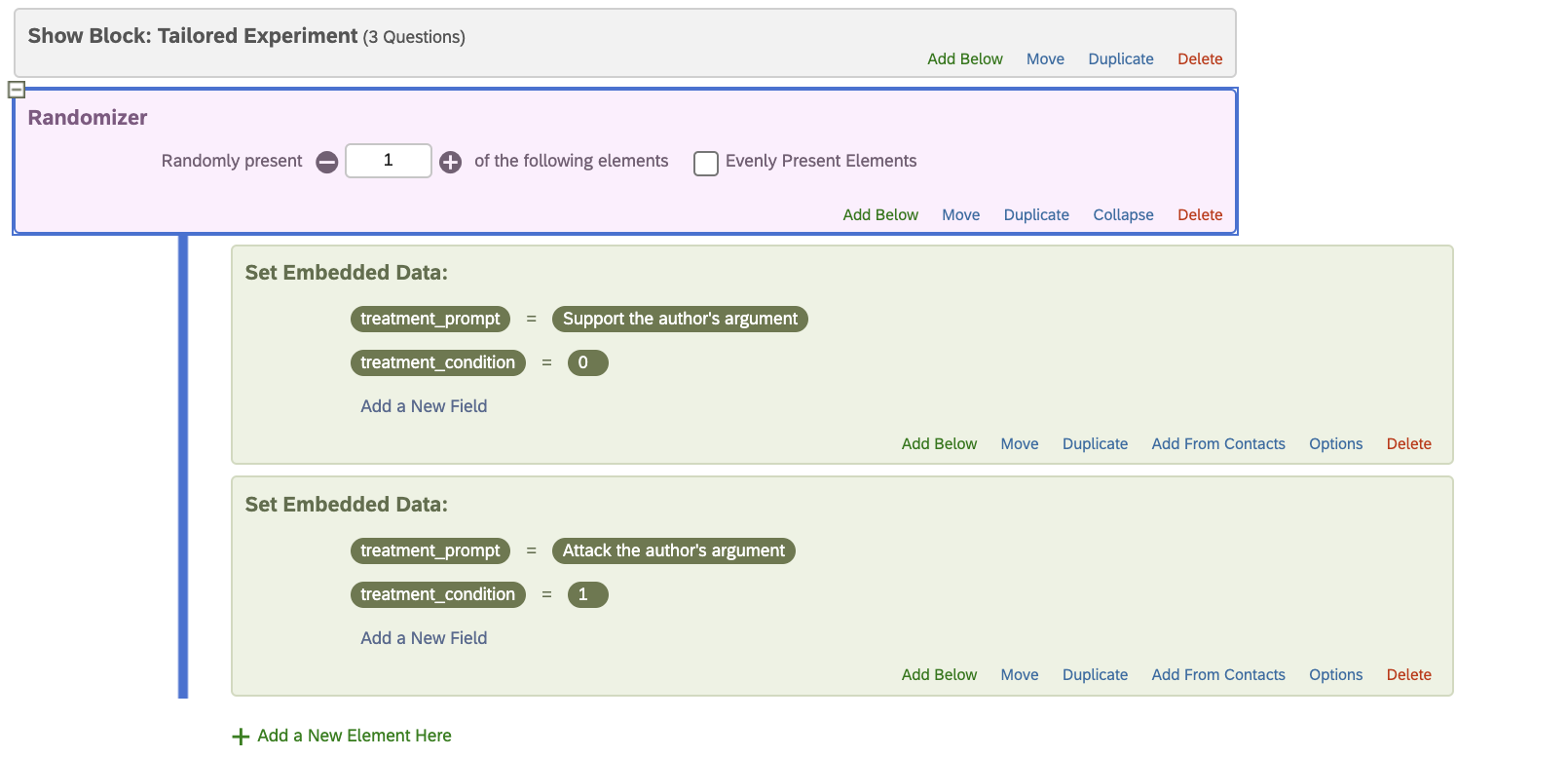
To randomize different prompts using embedded data fields:
- In Qualtrics, go to Survey Flow
- Add a new Randomizer element.
- Within the Randomizer, add multiple Set Embedded Data elements
- For each randomization element:
- Vary the treatment_prompt field.
- Use a treatment indicator as an embedded data field.
Step 6: Run the Survey

Now it's time to test your survey:
- Click on the "Preview Survey" button in Qualtrics
- Go through the survey, answering the questions
- Observe how the AI generates tailored content and outcomes based on your responses (In this case, the bot responds in Olde English to a user who wrote about supporting space exploration.)
The survey should now present AI-generated content tailored to the participant's responses.
The tailored outcome measure is captured using the "summary" embedded data field.
The tailored treatment is captured using the "rebuttal" embedded data field.
Step 7: In the Weeds (Bonus): Editing the JavaScript
For those who want to dive deeper, this section explains how to modify the JavaScript code that powers the AI interactions in your survey.
7.1 Issue Question JavaScript
This script handles the initial user input and generates a summary:
Qualtrics.SurveyEngine.addOnReady(function() {
    jQuery("#NextButton").hide();
    var apiKey = Qualtrics.SurveyEngine.getEmbeddedData('apiKey');
    var gpt4ApiUrl = 'https://api.openai.com/v1/chat/completions';
    var fireworksApiUrl = 'https://api.fireworks.ai/inference/v1/chat/completions';

    function callAPI(userArgument, apiType) {
        var instructions = "Create a one-sentence summary of the following argument...";
        // ... (rest of the instructions)

        var data = {
            messages: [{ role: "user", content: instructions }]
        };
        var apiUrl = '';
        var model = '';

        if (apiType === 'no') {
            apiUrl = gpt4ApiUrl;
            data.model = "gpt-4o-mini";
        } else if (apiType === 'yes') {
            apiUrl = fireworksApiUrl;
            model = "accounts/fireworks/models/llama-v3p1-70b-instruct";
            // ... (Fireworks-specific data configuration)
        }

        fetch(apiUrl, {
            method: 'POST',
            headers: {
                'Content-Type': 'application/json',
                'Authorization': 'Bearer ' + apiKey
            },
            body: JSON.stringify(data)
        })
        .then(response => response.json())
        .then(data => {
            var apiResponse = data.choices ? data.choices[0].message.content : data.messages[0].content;
            Qualtrics.SurveyEngine.setEmbeddedData('summary', apiResponse);
            jQuery("#NextButton").show();
        })
        .catch(error => {
            console.error('Error:', error);
            document.getElementById('output').innerText = "An error occurred while fetching the summary.";
        });
    }

    document.getElementById('triggerButton').addEventListener('click', function() {
        var userPrompt = document.getElementById('userPrompt').value;
        var apiType = Qualtrics.SurveyEngine.getEmbeddedData('open');
        callAPI(userPrompt, apiType);
    });
});
Key points to modify:
- API URLs: Update if using different endpoints
- Model names: Change if you want to use different AI models
- Instructions: Modify the summary creation instructions as needed
- Error handling: Customize error messages or add more robust error handling
7.2 Response JavaScript
This script generates the AI's response based on the summary:
Qualtrics.SurveyEngine.addOnReady(function() {

    var outputElement = document.getElementById('rebuttalOutput');
    if (outputElement) outputElement.style.display = 'none';

    var apiKey = Qualtrics.SurveyEngine.getEmbeddedData('apiKey');
    var isOpenSource = Qualtrics.SurveyEngine.getEmbeddedData('open'); // Retrieve the open-source flag

    jQuery("#NextButton").hide();

    var summary = Qualtrics.SurveyEngine.getEmbeddedData('summary');

    if (!summary) {
        console.error('Summary data is not available.');
        return; // Exit if no summary data is available to avoid errors.
    }

    var guide = Qualtrics.SurveyEngine.getEmbeddedData('treatment_prompt');
    var prompt = "Write a paragraph-long rebuttal of the following argument, following these instructions: " + guide + ". The counterargument should disagree with the user's argument.\n\nUser Argument: " + summary + "\nCounterargument:";

    var apiUrl = '';
    var data = {};

    if (isOpenSource === 'yes') {
        // Use Fireworks model
        apiUrl = 'https://api.fireworks.ai/inference/v1/chat/completions';
        data = {
            model: "accounts/fireworks/models/llama-v3p1-70b-instruct",
            messages: [{ role: "user", content: prompt }]
        };
    } else {
        // Use OpenAI model
        apiUrl = 'https://api.openai.com/v1/chat/completions';
        data = {
            model: "gpt-4o-mini",
            messages: [{ role: "user", content: prompt }]
        };
    }

    fetch(apiUrl, {
        method: 'POST',
        headers: {
            'Content-Type': 'application/json',
            'Authorization': 'Bearer ' + apiKey
        },
        body: JSON.stringify(data)
    })
    .then(response => response.json())
    .then(data => {
        if (data && data.choices && data.choices.length > 0) {
            var rebuttal = data.choices[0].message.content;
            outputElement.innerText = rebuttal; // Set the text to the output element
            outputElement.style.display = ''; // Show the output element
            Qualtrics.SurveyEngine.setEmbeddedData('rebuttal', rebuttal);
            jQuery("#NextButton").show(); // Show the Next button
        } else {
            console.error('No data returned from the API.');
            outputElement.innerText = "No valid response was obtained.";
            outputElement.style.display = '';
        }
    })
    .catch(error => {
        console.error('Error:', error);
        outputElement.innerText = "An error occurred while fetching the summary.";
        outputElement.style.display = '';
    });
});
Key points to modify:
- API endpoint: Change if using a different AI service
- Model: Update the model name if desired
- Prompt construction: Modify how the rebuttal prompt is constructed
- Error handling: Customize error messages or add more robust error handling